Where Can I Put LinkedIn on My Resume on Top – Tips & Suggestions
LinkedIn on My Resume on Top: Your resume is your first impression. LinkedIn is your second. Recruiters check both. They do it fast. They do it every single time.
Placing your LinkedIn URL at the top of your resume is one of the smartest moves you can make. It tells recruiters you are active online. It shows you are easy to find. It proves you take your professional presence seriously.
This is not optional anymore. The job market is competitive. Thousands of resumes land in recruiter inboxes every week. Standing out requires more than a well-written summary. It requires a complete, polished, and accessible professional footprint. LinkedIn is a huge part of that footprint.
This guide breaks down exactly where to place it. It covers formatting rules. It explains ATS compatibility. It gives you real examples. Follow this guide, and your LinkedIn placement will work for you every single time.
Why LinkedIn at the Top of Your Resume Matters
LinkedIn has over 1 billion users worldwide. Over 78% of recruiters use it to find and research candidates. Some studies show that 40% of employers will not consider you if you lack a LinkedIn profile.
These numbers are not small. They are industry-defining. Your LinkedIn URL on your resume does three things:
- It gives recruiters instant access to your full professional profile.
- It signals that you maintain a polished online presence.
- It saves the recruiter time. They do not have to search for you manually.
Placing it at the top maximizes visibility. Recruiters scan the top of a resume first. They spend only 6 to 7 seconds on an initial review. Put your LinkedIn where they will see it immediately.
Also Read: 2 Column or 1 Column Resume: Which Works Best for Your Career?
The Exact Placement: Where LinkedIn Goes on Top
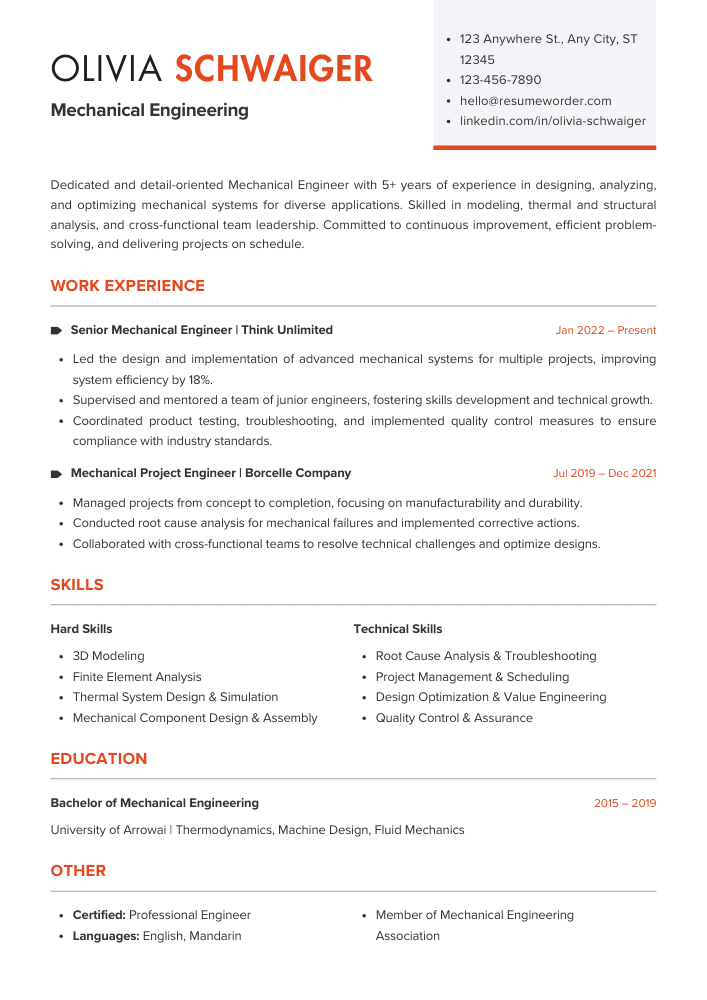
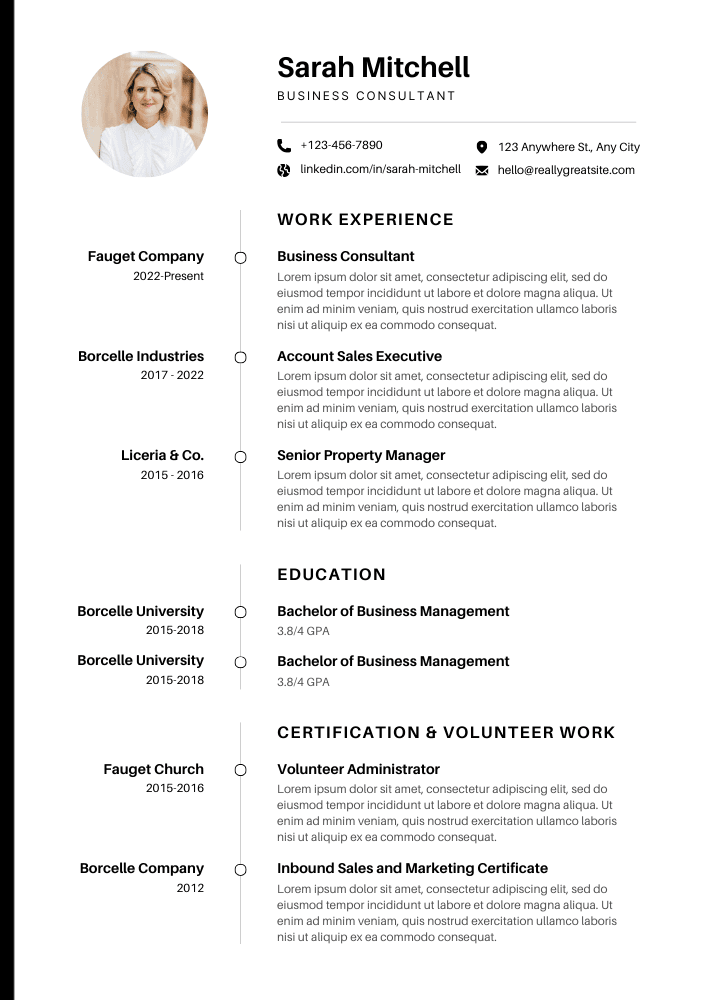
The correct spot is inside your contact header section. This is the area at the very top of your resume. It sits right below your name.
Your contact header typically includes these elements in this order:
- Full Name (largest font, bold)
- Job Title or Professional Headline (optional)
- Phone Number
- Email Address
- City and State (no full street address needed)
- LinkedIn URL
- Personal Website or Portfolio (if applicable)
LinkedIn should be the last or second-to-last item in this list. It follows your email and location. This is the universally accepted placement.
Here is what a properly formatted header looks like:
Sarah Mitchell
Senior Data Analyst
(555) 234-5678 | [email protected] | Austin, TX | linkedin.com/in/sarah-mitchell
Clean. Simple. Professional. Everything a recruiter needs is in one line or two.
How to Format the LinkedIn URL Correctly
Formatting matters. A messy URL looks unprofessional. A clean URL builds trust instantly.
Follow these rules every single time:
- Remove “https://www.” — You do not need it. It wastes space. linkedin.com/in/yourname is enough.
- Remove any trailing numbers or characters — LinkedIn auto-generates URLs like linkedin.com/in/jane-smith-4823a91. Those random characters must go.
- Customize your URL first — Create a clean, personalized link before adding it to your resume.
- Do not label it “LinkedIn” — The URL itself starts with linkedin.com. Recruiters already know what it is.
- Make it clickable in digital versions — Hyperlink the URL in Word or Google Docs. Test it before sending.
- Remove hyperlink styling for printed copies — Blue underlined text looks out of place on paper. Use plain black text.
How to Customize Your LinkedIn URL
- Open LinkedIn in your web browser.
- Click on your profile photo in the top right corner.
- Select “View Profile.”
- Click “Edit public profile & URL” on the right side of the page.
- Under “Edit your public profile URL,” delete any numbers or random characters.
- Type your clean name (e.g., linkedin.com/in/sarah-mitchell).
- Click “Save.”
- Test the new URL by copying and pasting it into a fresh browser tab.
- Confirm it leads directly to your profile.
This takes less than two minutes. Do it before you touch your resume.
URL Format Comparison Table
| Version | Example URL | Verdict |
|---|---|---|
| Default (auto-generated) | linkedin.com/in/sarah-mitchell-4823a91kd | ❌ Unprofessional. Looks messy. Wastes space. |
| Customized (name only) | linkedin.com/in/sarah-mitchell | ✅ Clean. Easy to read. Looks polished. |
| With full https prefix | https://www.linkedin.com/in/sarah-mitchell | ❌ Too long. Takes up valuable resume space. |
| With label added | LinkedIn: linkedin.com/in/sarah-mitchell | ❌ Redundant. The URL already says linkedin.com. |
| Name + job title | linkedin.com/in/sarah-mitchell-data-analyst | ✅ Acceptable. Adds clarity in competitive fields. |
Always go with the clean, customized version. It is the industry standard.
Header vs. Other Sections
Some people wonder if LinkedIn can go anywhere else on the resume. It can. But the top is always best.
Here is a breakdown of every possible placement and how each one performs:
| Placement Location | Visibility | Recruiter Ease | ATS Compatibility | Recommended? |
|---|---|---|---|---|
| Contact Header (Top) | Very High | Instant access | High (if in body, not margin) | ✅ Yes — Best Option |
| Below Professional Summary | High | Easy to find | High | ✅ Yes — Good Backup |
| Skills Section | Medium | Requires scrolling | Medium | ❌ Not Ideal |
| Work Experience Section | Low | Often overlooked | Medium | ❌ Not Recommended |
| Footer of Resume | Very Low | Easily missed | ❌ Often Unreadable by ATS | ❌ Avoid |
| Sidebar (Two-Column Layout) | Medium | Depends on design | Low | ⚠️ Risky |
The header wins every time. It is where recruiters look first. It is where ATS software expects to find contact details.
Must Read: How Many Pages Should a Resume Be?
ATS Compatibility: Critical Rules for LinkedIn Placement
Applicant Tracking Systems (ATS) scan resumes before any human sees them. Over 58% of resumes get rejected by ATS due to formatting errors. Many of those errors happen in the header.
Follow these ATS rules strictly:
- Place LinkedIn in the body of the document — Not in Word’s built-in header or footer fields. ATS software often cannot read those areas.
- Use plain text formatting — No special icons, logos, or images next to the URL. They can confuse the parser.
- Use standard separators — A pipe symbol (|) or a simple comma works best between contact details.
- Avoid tables or text boxes in the header — They break the parsing flow for most ATS systems.
- Save as .docx or PDF — These are the most ATS-compatible file formats. Avoid .jpg or .png.
- Do not use decorative or uncommon fonts — Stick to Calibri, Arial, or Garamond. ATS reads these reliably.
- Keep margins at one inch on all sides — No text should bleed into the margins.
Quick ATS Checklist
- LinkedIn URL is in the main body of the document
- No special icons or images next to the URL
- URL is customized and clean
- Separator between contact items is a pipe (|) or comma
- File is saved as .docx or PDF
- Font is standard and readable
- Margins are one inch on all sides
- URL is hyperlinked in the digital version
- Hyperlink removed for printed version
What Your LinkedIn Profile Must Look Like Before You Add It
Adding a bad LinkedIn URL to your resume does more harm than good. Recruiters will click it. They will judge what they see.
Before you put LinkedIn on your resume, make sure your profile passes this checklist:
- Profile photo — Use a clear, professional headshot. Profiles with photos get significantly more views.
- Headline — Write a headline that reflects your current role or target role. Do not leave it as your job title alone.
- About section — Write 2 to 3 sentences. Tell recruiters who you are and what you bring to the table.
- Work history — Every job on your resume must also appear on LinkedIn. Dates and titles must match.
- Skills — List at least 10 relevant skills. Ask colleagues for endorsements.
- Recommendations — Even one recommendation adds serious credibility.
- Certifications — List any professional certifications you hold.
- Activity — Post or engage with content regularly. An inactive profile raises red flags.
Profile Readiness Scorecard
| Profile Element | Why It Matters | Status |
|---|---|---|
| Professional Photo | Profiles with photos get 21x more views | |
| Keyword-Rich Headline | Recruiters search by headline keywords | |
| Updated Work History | Must match your resume exactly | |
| Skills & Endorsements | Proves credibility beyond self-reporting | |
| At Least 1 Recommendation | Adds social proof from real people | |
| About Section Written | Tells your story in your own words | |
| Recent Activity | Shows you are active and engaged |
Do not add your LinkedIn URL to your resume until every item above is checked off.
Common Mistakes People Make With LinkedIn on Resumes
Avoid every single one of these errors:
- Using the default auto-generated URL — It looks sloppy and wastes space. Recruiters notice immediately.
- Putting LinkedIn in the footer — Recruiters miss it. ATS often cannot read it. It defeats the entire purpose.
- Adding “LinkedIn:” as a label — It is redundant. The URL already tells them what it is. It just adds clutter.
- Including the full https://www. prefix — It is unnecessary and makes the line too long. Cut it down.
- Linking to an outdated or incomplete profile — This creates a bad impression instantly. It can cost you the interview.
- Using a LinkedIn icon or logo — It can interfere with ATS scanning in some systems. Plain text is safer.
- Mismatching information between resume and LinkedIn — Recruiters notice. It destroys trust immediately.
- Forgetting to hyperlink the URL in digital versions — It forces recruiters to copy and paste manually. That is friction you do not want.
- Using a nickname or informal variation in the URL — Keep it professional. Use your full name or a close match to it.
- Never updating the URL after customizing it — If your name changes or you rebrand, update the URL on both platforms.
Each of these mistakes is avoidable. Each one costs you credibility. Take five minutes to check your resume against this list. It could be the difference between a rejection and a callback.
Real-World Header Examples
Example 1: Single-Line Header (Most Common)
James Carter
Marketing Manager
(555) 678-9012 | [email protected] | Denver, CO | linkedin.com/in/james-carter
Example 2: Two-Line Header (More Space)
James Carter
Marketing Manager
(555) 678-9012 | [email protected]
Denver, CO | linkedin.com/in/james-carter | jamescarterportfolio.com
Example 3: Header with Personal Website
Priya Sharma
UX Designer
(555) 321-6543 | [email protected] | Seattle, WA
linkedin.com/in/priya-sharma | priyasharma.design
All three formats work. Pick the one that fits your resume layout best. Keep it clean. Keep it readable.
When You Should NOT Include LinkedIn on Your Resume
Most of the time, you should include it. But there are specific situations where leaving it off makes sense:
- Your LinkedIn profile is incomplete or outdated.
- Your profile has no photo and no activity.
- The information on LinkedIn does not match your resume.
- You are applying for a role where online presence is not expected or relevant.
- Your profile contains content that could raise concerns during screening.
- You recently changed careers and your profile still reflects your old industry.
- Your profile has zero recommendations or endorsements and looks bare.
In these cases, fix your profile first. Then add it back to your resume. A strong LinkedIn profile is an asset. A weak one is a liability. Know the difference before you hit send on any application.
Must Check: Should You Put Your Address on Your Resume?
Final Checklist Before You Submit Your Resume
Go through this list one last time before sending your application anywhere:
- LinkedIn URL is placed in the contact header at the top of the resume.
- The URL is customized and does not contain random numbers or characters.
- The “https://www.” prefix is removed.
- No label like “LinkedIn:” precedes the URL.
- The URL is hyperlinked in the digital version of your resume.
- Hyperlink styling is removed for any printed copies.
- Your LinkedIn profile is complete, updated, and matches your resume.
- The URL is placed in the body of the document, not in Word’s header or footer.
- Your resume is saved as .docx or PDF.
- You have tested the link to confirm it works.
Every single item on this list matters. Miss one, and you risk losing credibility or getting filtered out by ATS.
FAQs about LinkedIn on My Resume
Should I include my LinkedIn URL on every resume I send?
Yes, include it on every resume unless your profile is incomplete or outdated. Recruiters expect to find it in your contact header. A polished LinkedIn profile reinforces your resume and gives recruiters instant access to your full professional history and recommendations.
Where exactly in the header should LinkedIn appear?
Place your LinkedIn URL after your phone number, email address, and location. It should be the last or second-to-last item in your contact header. This is the universally accepted placement that recruiters expect to see and ATS software can parse easily.
Do I need to write “LinkedIn:” before the URL?
No, never add a label like “LinkedIn:” before the URL. The URL already starts with linkedin.com, so recruiters instantly recognize it. Adding a label wastes valuable space and creates unnecessary clutter. Keep your header clean and efficient with the URL alone.
Can I put LinkedIn in the footer instead of the header?
Avoid placing LinkedIn in the footer. Recruiters often miss it there, and many ATS systems cannot read footer content properly. Always place it in the main body of your resume within the contact header at the top for maximum visibility and compatibility.
What if my LinkedIn and resume information do not match perfectly?
Fix this immediately before sending any applications. Mismatched information between your resume and LinkedIn destroys credibility with recruiters. Update both documents so job titles, employment dates, and responsibilities align exactly. Consistency builds trust and prevents automatic disqualification during screening.
Should I hyperlink the LinkedIn URL in my resume?
Yes, always hyperlink it in digital versions (Word, Google Docs, PDF). This lets recruiters click directly to your profile. However, remove the blue underline styling for printed copies, as it looks unprofessional on paper. Test the link before submitting to ensure it works.
Final Words
Put your LinkedIn URL at the top. Place it in your contact header. Keep it clean and customized. Make sure your profile backs up everything on your resume. Follow the ATS rules. Avoid the common mistakes. Do all of this, and your LinkedIn placement becomes a silent but powerful asset in every application you send.
The best candidates do not leave anything to chance. Every detail on their resume is intentional. Your LinkedIn placement should be no different. Get it right once. Then it works for every application going forward.
Related Posts
Common Resume FAQs & Answers You Should Know in 2026

Professional Resume Header Writing Tips – Contact Information

How to list Language Skills Section on Resume 2026 – Best Examples & Tips
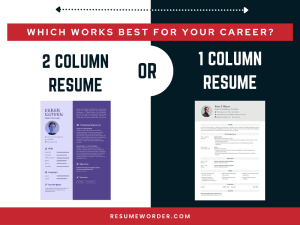
2 Column or 1 Column Resume: Which Works Best for Your Career?
Resume Writing Checklist 2026 – Resume Essentials, Dos & Don’ts